From scheduling to check-inManage every activity in one place

Schedule tutor training, open days, and workshops. Check for clashes, collect registrations, and track attendance in one system.

Primary students perform together on a small stage at the center
  • Challenge 01

    Training overlaps with regular classes

  • Challenge 02

    Registrations are hard to tally

  • Challenge 03

    Registrations and actual attendance are tracked separately

Schedule training around regular classes

  • Check the selected tutor’s and room’s availability
  • Review overlaps with existing classes or activities
  • Choose an available time and venue before confirming
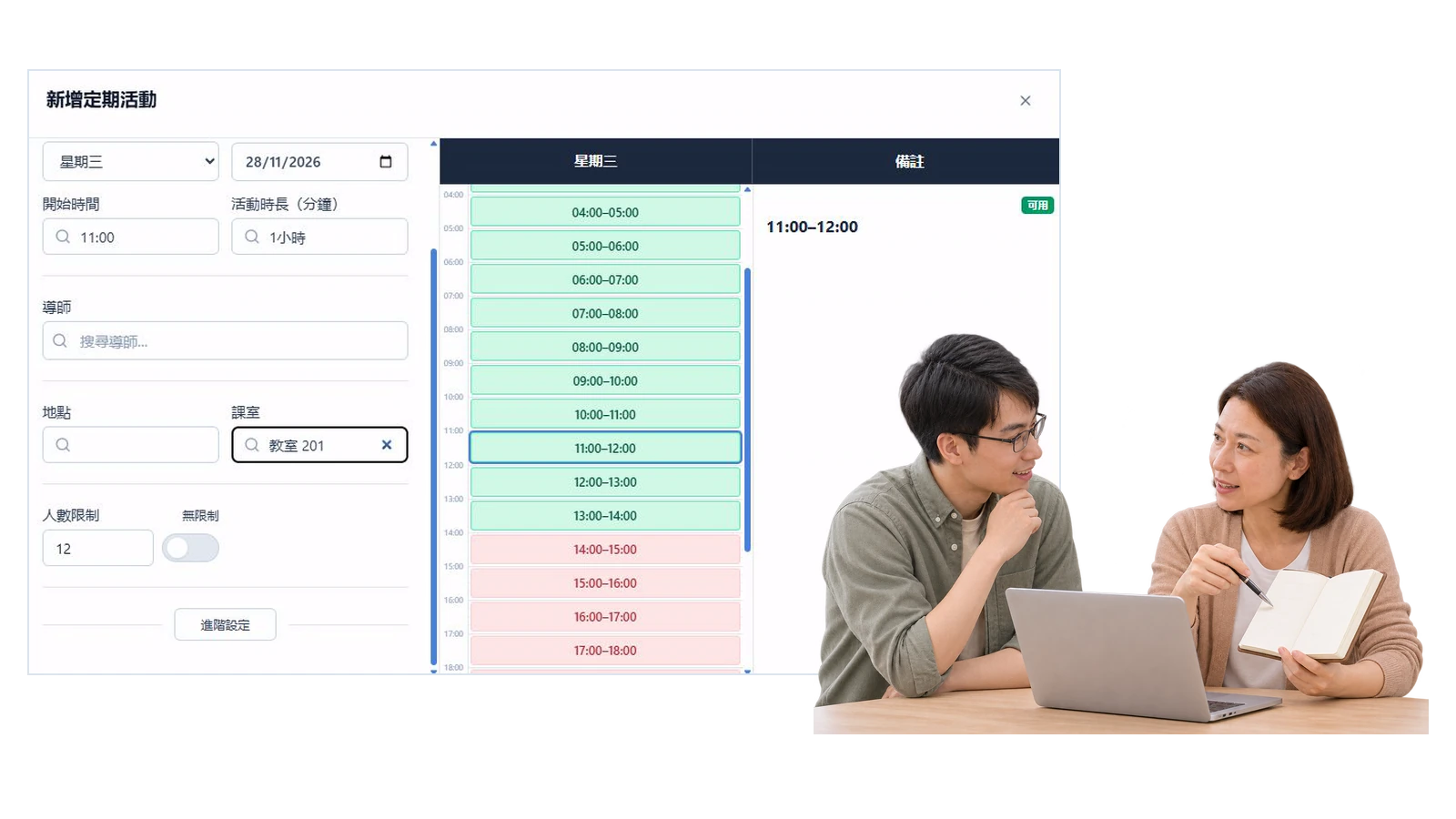
A center manager and tutor review a planner beside the CMS recurring activity screen, which shows available and occupied room slots.

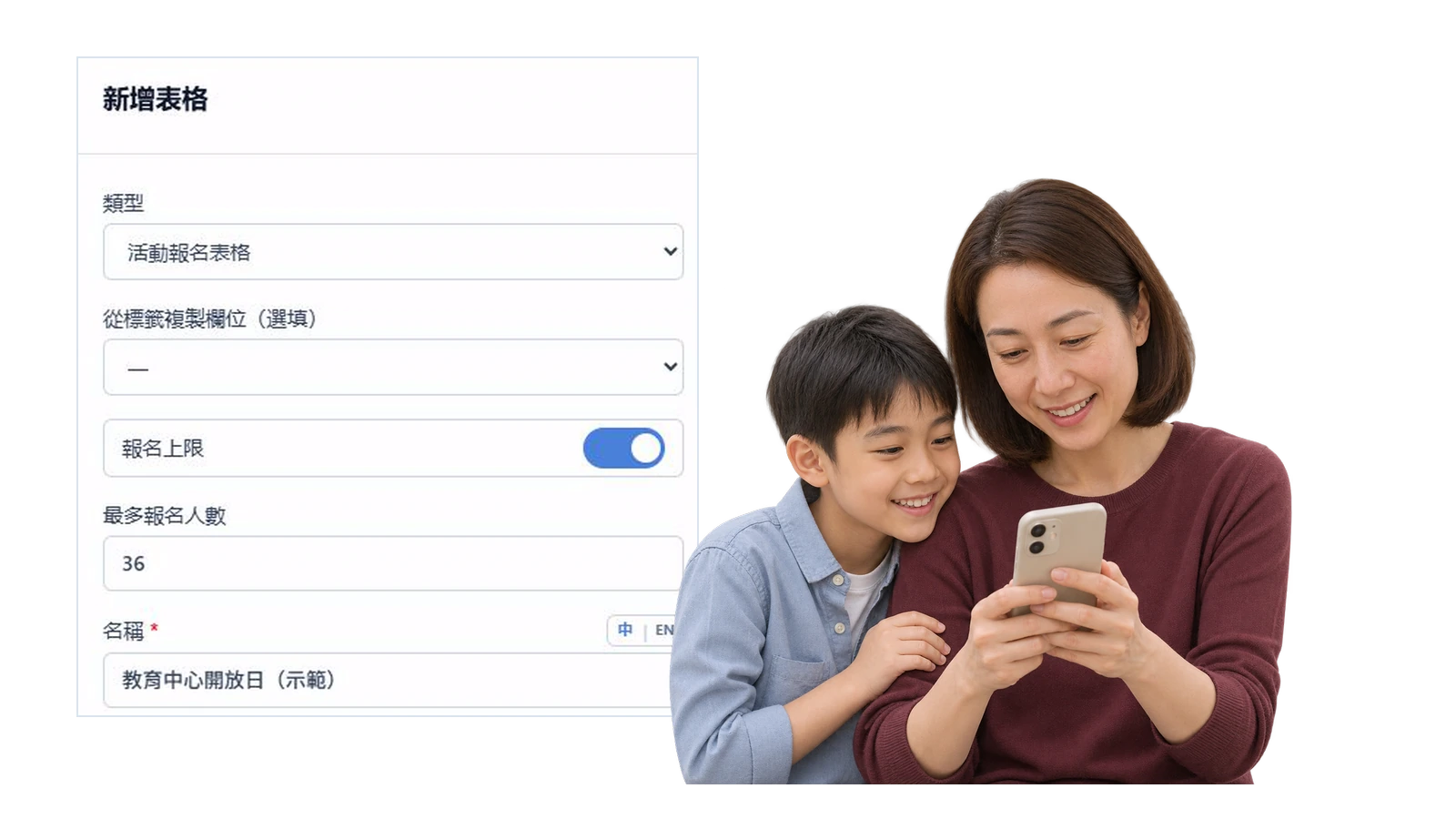
Take open-day registrations online and set a limit

  • Share the registration form so families can sign up online
  • Set a registration limit based on how many visitors you can accommodate
  • Review form submissions and session enrollment in the CMS
A parent and child look at a phone beside the CMS registration form settings for a sample open day with a limit of 36 attendees.

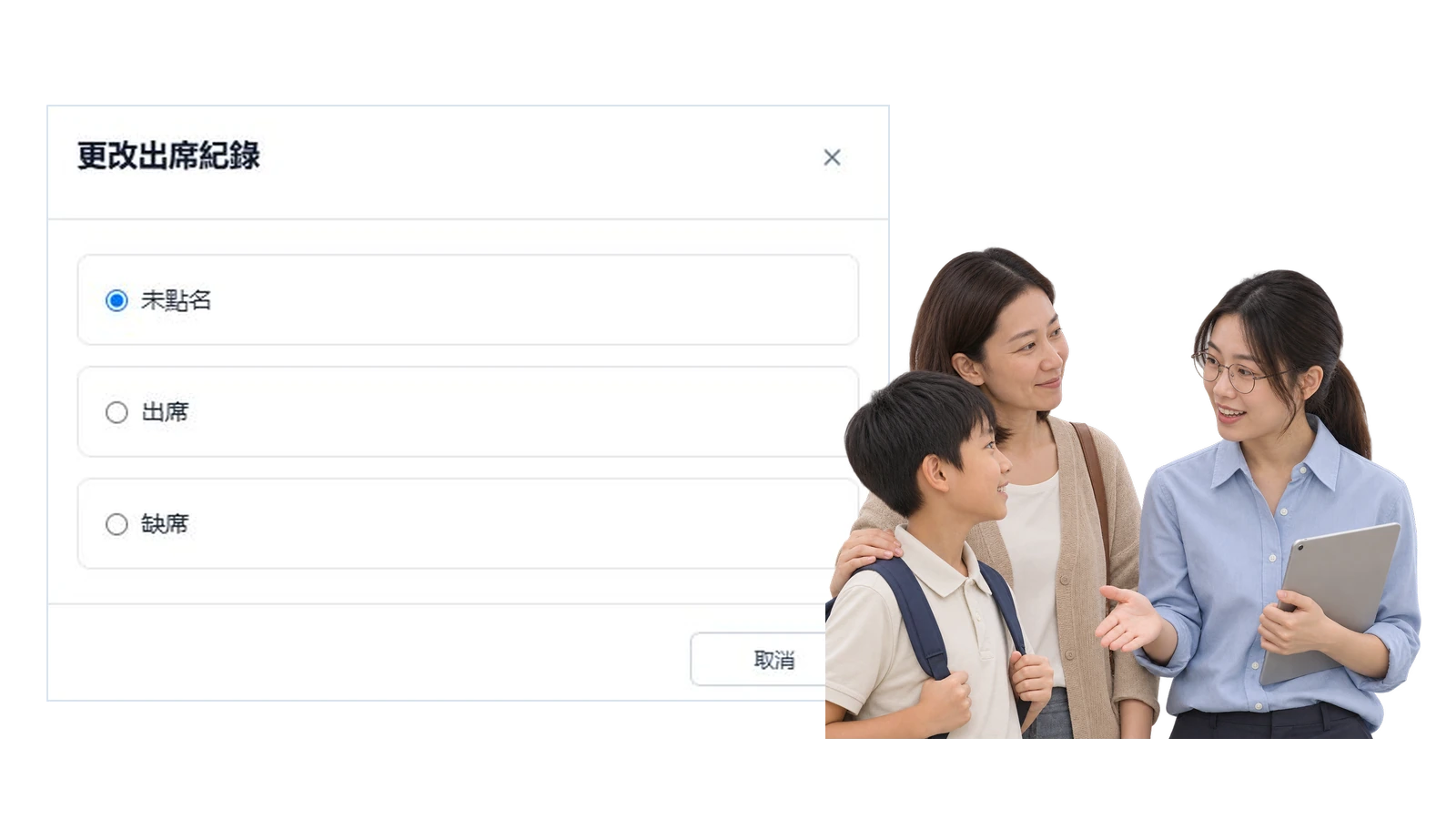
Record actual attendance by session

  • Mark attendance directly from the session’s participant list
  • Track who was present, absent, or has yet to be marked
  • Review attendance after the activity
A staff member with a tablet greets a parent and child beside the CMS attendance dialog showing Unmarked, Present, and Absent.

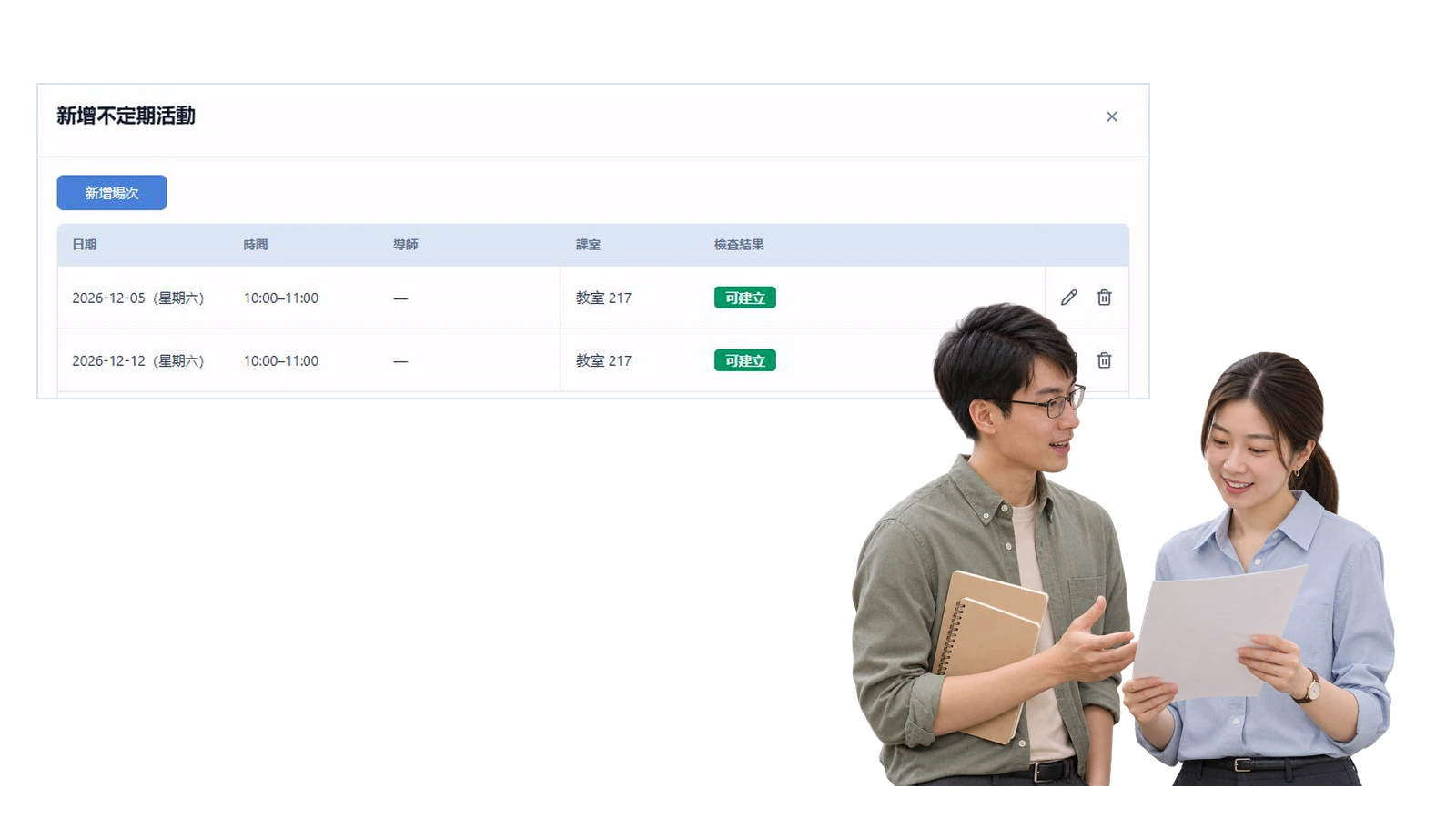
Schedule multiple sessions for one activity

  • Create recurring or date-specific activity schedules
  • Add multiple workshop dates and set each session’s time and room
  • Reschedule individual sessions as needed
Two tutors review workshop materials beside the CMS scheduling table, which shows dates, rooms, and availability checks for two sessions.

Review each session’s participant list

  • Check enrollment and capacity in the session overview
  • Review participants by type, including students and prospects
  • Add participants to the relevant session as needed
A center manager and receptionist check a list beside the CMS activity session overview showing enrollment numbers and demo participants.

Put AI to work.Get your time back.

LessonBell MCP
  • Gemini
  • Grok
  • ChatGPT
  • Claude

Center Owner

Add a Sunday science-workshop session, 14:00–16:00, in Room B with Miss Lee.

Bell (AI Assistant)

Demo completed via MCP

  • Check the activity and proposed time
  • Preview room, tutor and scheduling conflicts
  • Create the activity session

I’ve added the Sunday science workshop from 14:00–16:00 in Room B with Miss Lee. Your team can now add participants and review the details before the event.

New session
Sunday 14:00–16:00
Tutor and room
Miss Lee · Room B

Questions?
We’ve got answers.

Can we check whether training overlaps with regular classes?

Yes. After choosing a tutor, room, and time, review the scheduling checks and adjust any conflicting slot.

Can we limit open-day registrations?

Yes. Set a limit on the activity registration form, and check submissions and session enrollment in the CMS.

Can we mark attendance separately for different sessions?

Yes. Each session has its own participant list and attendance record, so staff can mark who attended that session.

Ready for a simpler workday?You’re three steps away.

  1. Meet LessonBell

    Done
  2. Let’s talkSee it in action

    Get started
  3. Bring your dataTry it for a month

  4. You’re all set

  1. Submit the form
  2. 5-minute phone call
  3. On-site or online demo

Book a Demo

Can we call you now?