Teach your way.Make every lesson count.

Keep handouts, videos, and assignments organized. Schedule releases, collect homework in the app, and give tutors one place to grade work and track progress.

A student watches a lesson on a phone while completing an exercise
  • Challenge 01

    Too Much Printing and Repeating?

  • Challenge 02

    Losing Track of Homework?

  • Challenge 03

    Progress Hard to Show?

Build a Learning Library

  • Keep handouts, videos and exercises together
  • Group resources into topics and put them in order
  • Give absent students videos to catch up with

Three iPhones show a Grade 4 math paper, the Student App material list, and a full-page video lesson on elapsed time.

Prepare Once. Share on Schedule.

  • Choose which classes should receive each set
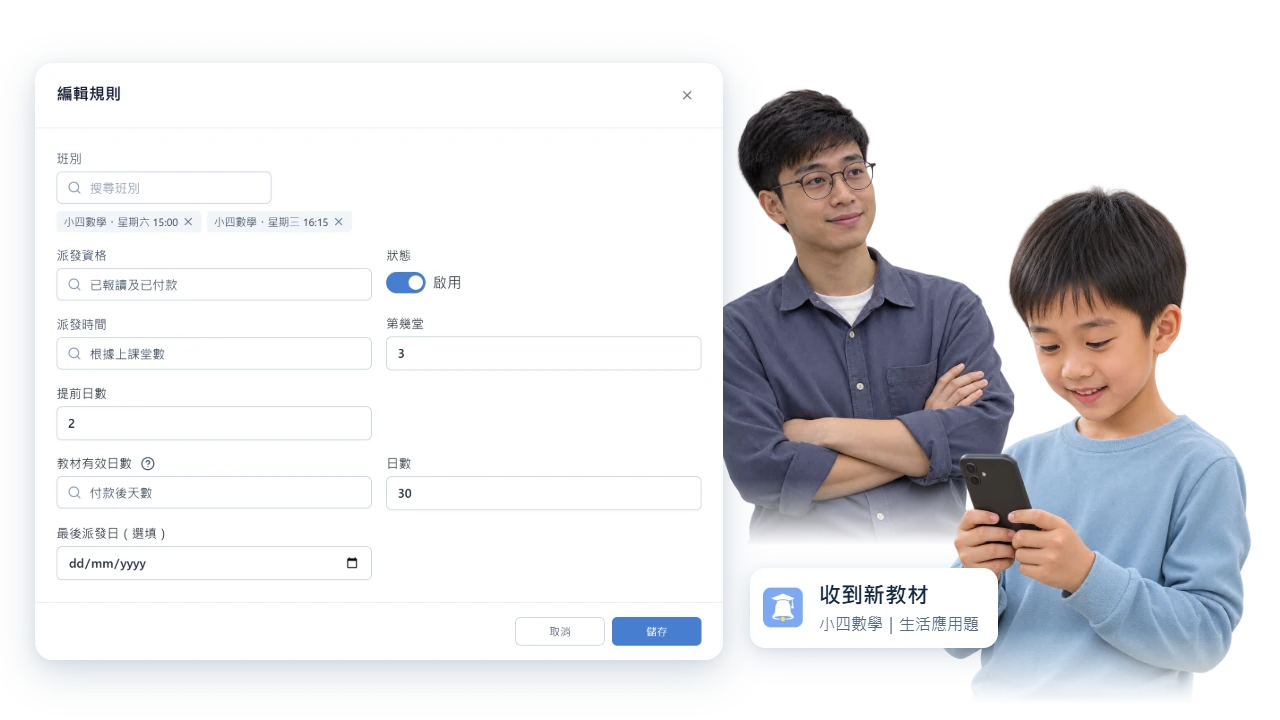
  • Schedule release before a chosen lesson
  • Let students find released materials in the app
The automatic distribution rule is set to release materials two days before the third lesson. Next to it, a relaxed tutor and a student receiving the materials on his phone.

Grade and Give Feedback Online

  • Annotate students’ submitted answers directly
  • Include feedback or a score when grading
  • Let students see returned work in the app
A portrait iPad grading screen shows a Grade 4 math paper with red annotations. An enlarged panel shows the 8.5 score and feedback beside a seated tutor holding an iPad and grading with an Apple Pencil.

See How Students Are Doing

  • Set deadlines for exercises
  • See what is due, awaiting grading or returned
  • Review submission and grading history
Two iPhones show the Student App homework history and a returned assignment with an 8.5 score, feedback and a written note, alongside a parent and child checking progress together.

Progress Reports That Fit

  • Choose report fields and rating scales by course
  • Record observations and suggested next steps
  • Refer to the report when speaking to a parent
The Tutor App report form and a student-facing report design preview sit beside a center owner, tutor and parent discussing learning progress in a meeting.

Keep Class Links Handy

  • Connect Zoom, Google Meet or Microsoft Teams
  • Create a meeting link from the relevant session
  • Copy the link and share it with students
A student joins class on a laptop on the left and a tutor teaches with a marker on the right. A LessonBell screenshot in the middle shows the online class link above the Google Meet, Zoom and Microsoft Teams logos.

Put AI to work.Get your time back.

LessonBell MCP
  • Gemini
  • Grok
  • ChatGPT
  • Claude

Center Owner

Organize the Grade 4 Math elapsed-time material into a revision plan.

Bell (AI Assistant)

Demo records checked via MCP

  • Read the material and content items
  • Identify time-conversion and word-problem topics
  • Prepare a step-by-step revision plan

The revision set has notes, a video, and two exercises. Start with the video, review the method in the notes, then work through the word problems.

Contents
1 set of notes · 1 video · 2 exercises
Suggested sequence
Video → notes → word problems

Questions?
We’ve got answers.

Can we schedule the release of teaching materials?

Yes. Enable automation and set the release rule for the chosen lesson and number of days in advance.

Can tutors mark the work students submitted?

Yes. Tutors can annotate submitted images or PDFs and return them for students to review in the app.

Can courses use different tutor report formats?

Yes. Create rating form templates and choose the fields and rating scale for each course.

Ready for a simpler workday?You’re three steps away.

  1. Meet LessonBell

    Done
  2. Let’s talkSee it in action

    Get started
  3. Bring your dataTry it for a month

  4. You’re all set

  1. Submit the form
  2. 5-minute phone call
  3. On-site or online demo

Book a Demo

Can we call you now?