From interview to first lessonGet new tutors ready to teach

Manage vacancies, candidates, and interviews in the CMS. Collect onboarding details, set teaching eligibility, and prepare Tutor App access once a tutor is hired.

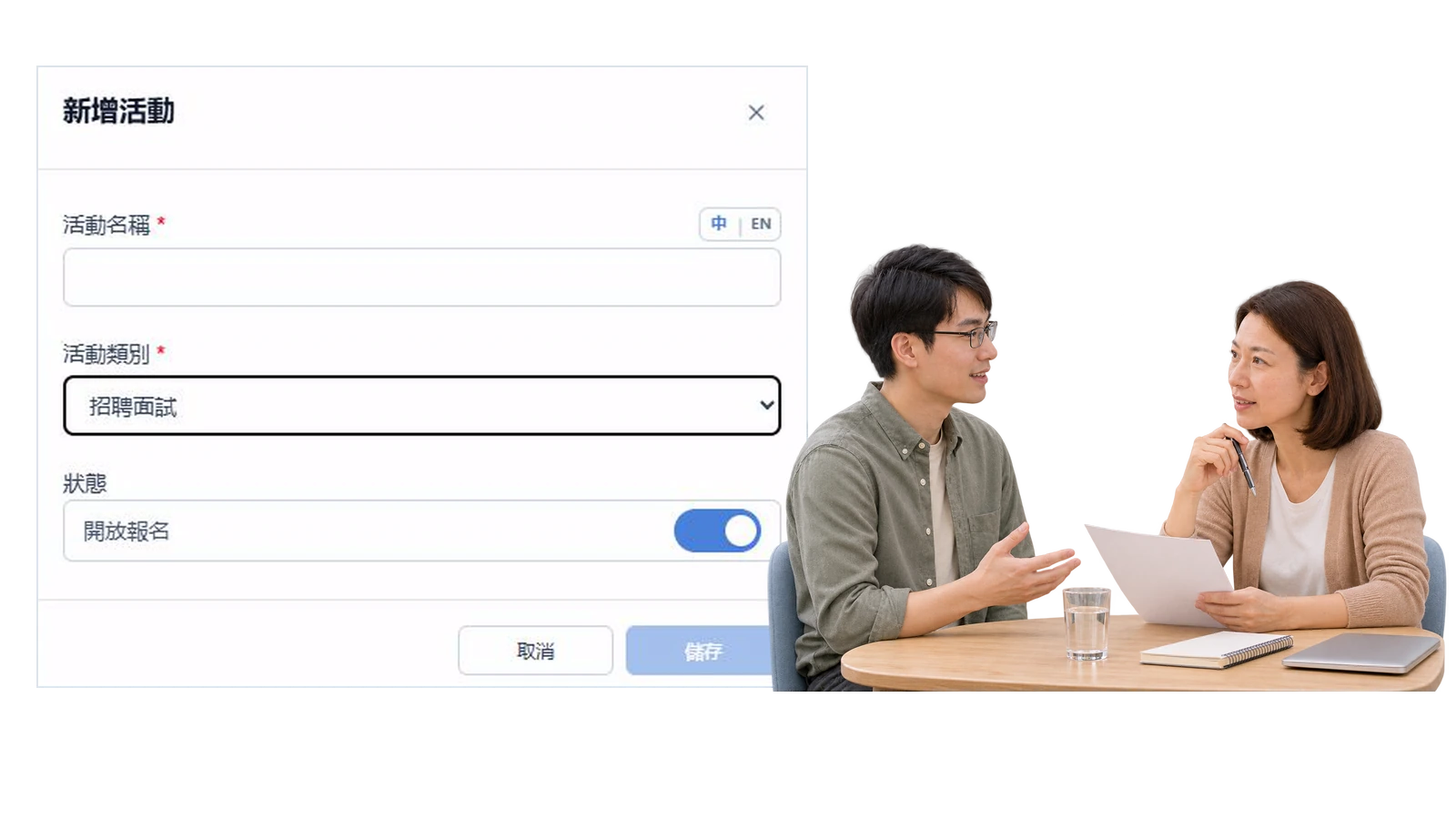
The center owner interviews a male tutor in a small meeting room
  • Challenge 01

    Vacancies and résumés are scattered

  • Challenge 02

    Interview schedules and candidates are tracked separately

  • Challenge 03

    Teaching and login setup is incomplete

Manage vacancies and candidates

  • Record the role, job requirements, and recruitment start date
  • Update the vacancy status as recruitment progresses
  • Link candidates from the talent pool and review résumés with the right access
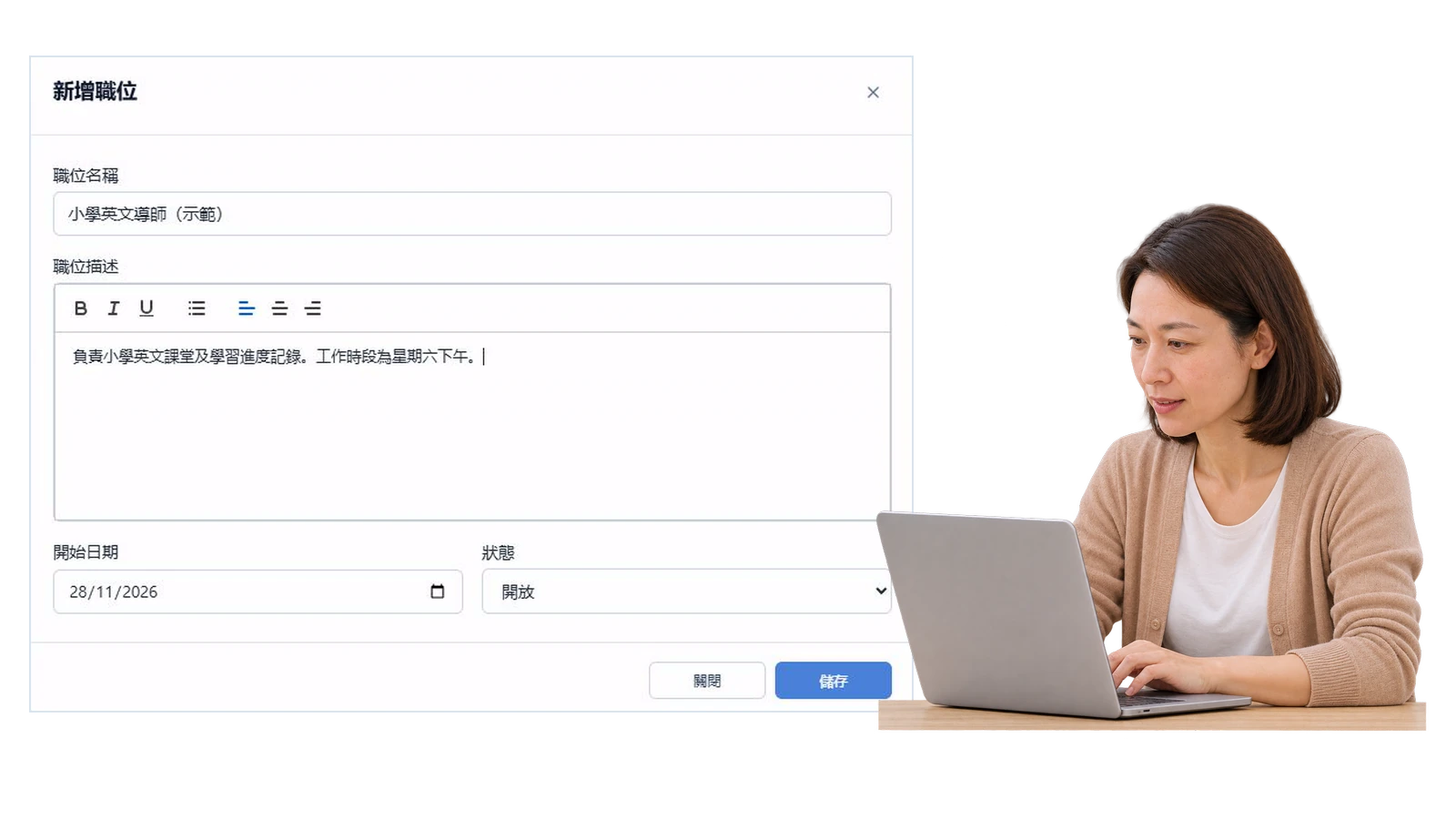
A center manager works on a laptop beside the CMS New Vacancy form, which shows the job description, start date, and recruitment status for a sample primary English tutor vacancy.

Schedule interviews as activities

  • Create a recruitment interview activity and set its time and venue
  • Add candidates from the same branch’s talent pool
  • Review participants and attendance for each session
A center manager interviews a tutor candidate beside the CMS New Activity form with Recruitment Interview selected.

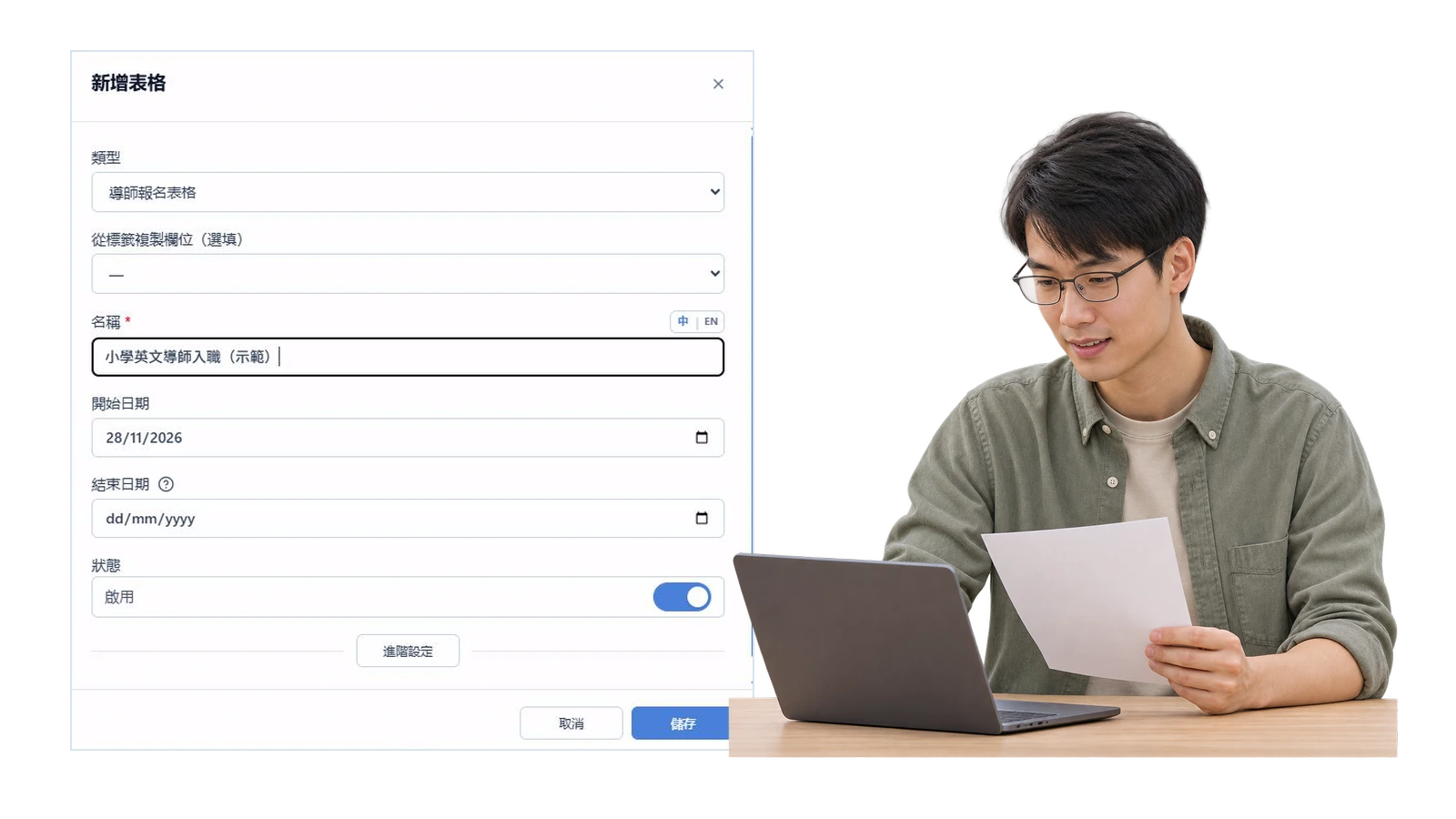
Collect onboarding details with a tutor form

  • Share a tutor registration form for contact details and a PDF résumé
  • Review the subjects and teaching experience submitted
  • Check responses and import selected details into a staff record
A tutor candidate checks onboarding details on a laptop beside the CMS tutor registration form settings.

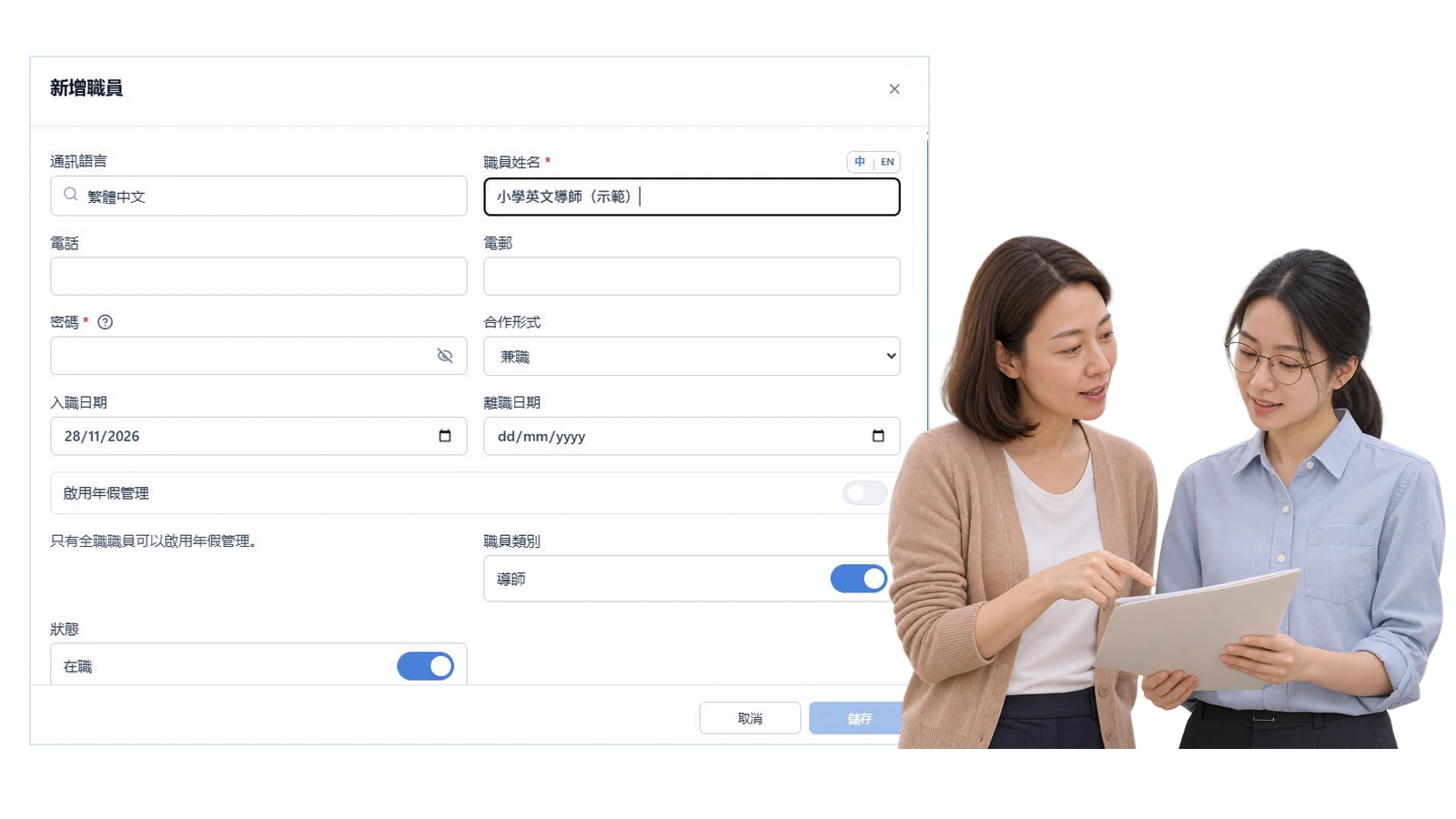
Set the tutor’s role and teaching eligibility

  • Record employment type, dates, and whether the staff member can teach
  • Set teaching eligibility by subject or individual course
  • Check which tutors are eligible when scheduling classes
A center manager reviews onboarding documents with a colleague beside the CMS New Staff form showing a sample part-time tutor’s start date and staff type.

Prepare the tutor’s first App sign-in

  • Confirm staff status and the sign-in details they need
  • Tutors complete the enabled first-login steps under the center’s settings
  • Tutors can then see their own lessons, timetable, and teaching assignments
A tutor checks his phone beside the Tutor App home screen, which shows the next lesson, today’s shift, and shortcuts.

Put AI to work.Get your time back.

LessonBell MCP
  • Gemini
  • Grok
  • ChatGPT
  • Claude

Center Owner

Add the existing English Tutor label to Miss Lam, keeping her other labels.

Bell (AI Assistant)

Demo completed via MCP

  • Read the staff record and current labels
  • Merge the English Tutor label
  • Save the updated label list

I’ve added the English Tutor label to Miss Lam’s profile and kept her other labels. Your team can use it to find and organize tutors more easily.

Staff member
Miss Lam
Label update
English Tutor added · others retained

Questions?
We’ve got answers.

Can we add talent-pool candidates to an interview?

Yes. Authorized staff can add candidates from the same branch’s talent pool to a recruitment interview session.

Does submitting the form immediately enable Tutor App access?

Form submission and staff-account setup are separate steps. Details can be imported into a staff record according to the form settings. Confirm staff status and sign-in details before the tutor signs in.

Can we set teaching eligibility for individual courses?

Yes. A tutor can be eligible for all courses, selected subjects, or individual courses. Actual teaching assignments are scheduled separately.

Ready for a simpler workday?You’re three steps away.

  1. Meet LessonBell

    Done
  2. Let’s talkSee it in action

    Get started
  3. Bring your dataTry it for a month

  4. You’re all set

  1. Submit the form
  2. 5-minute phone call
  3. On-site or online demo

Book a Demo

Can we call you now?